Loading
Vibe Coding with Context Awareness
Connect Cursor and AI IDEs to Umaku via MCP to manage tickets, bugs, sprints, and coding workflows directly inside your IDE.

There is a quiet tax on every developer who works with a project management tool. Before writing a single line of code, you open a browser tab, find the ticket, read the acceptance criteria, and then switch back to your IDE. When you are done, you reverse the process: update the status, link the commit, and add a comment. It is not hard, but it is constant.
Umaku’s MCP (Model Context Protocol) integration eliminates that tax. By connecting your AI coding environment directly to your Umaku workspace, the AI has full awareness of your tickets, sprints, and bugs while you code. You can ask it to load a task, suggest an implementation, update the status, and log a closing comment, all without leaving your IDE.
This guide focuses on Cursor as the primary IDE, with configuration steps also provided for Claude Code, Windsurf, VS Code, and Kiro. The workflow concepts apply equally to all of them.
Prerequisites
- An active Umaku account with at least one project and sprint
- Cursor installed (primary focus of this guide)
- Optionally: Claude Code CLI, Windsurf, VS Code 1.99+, or Kiro
- An Umaku MCP token
Step 1: Get Your Umaku MCP Token
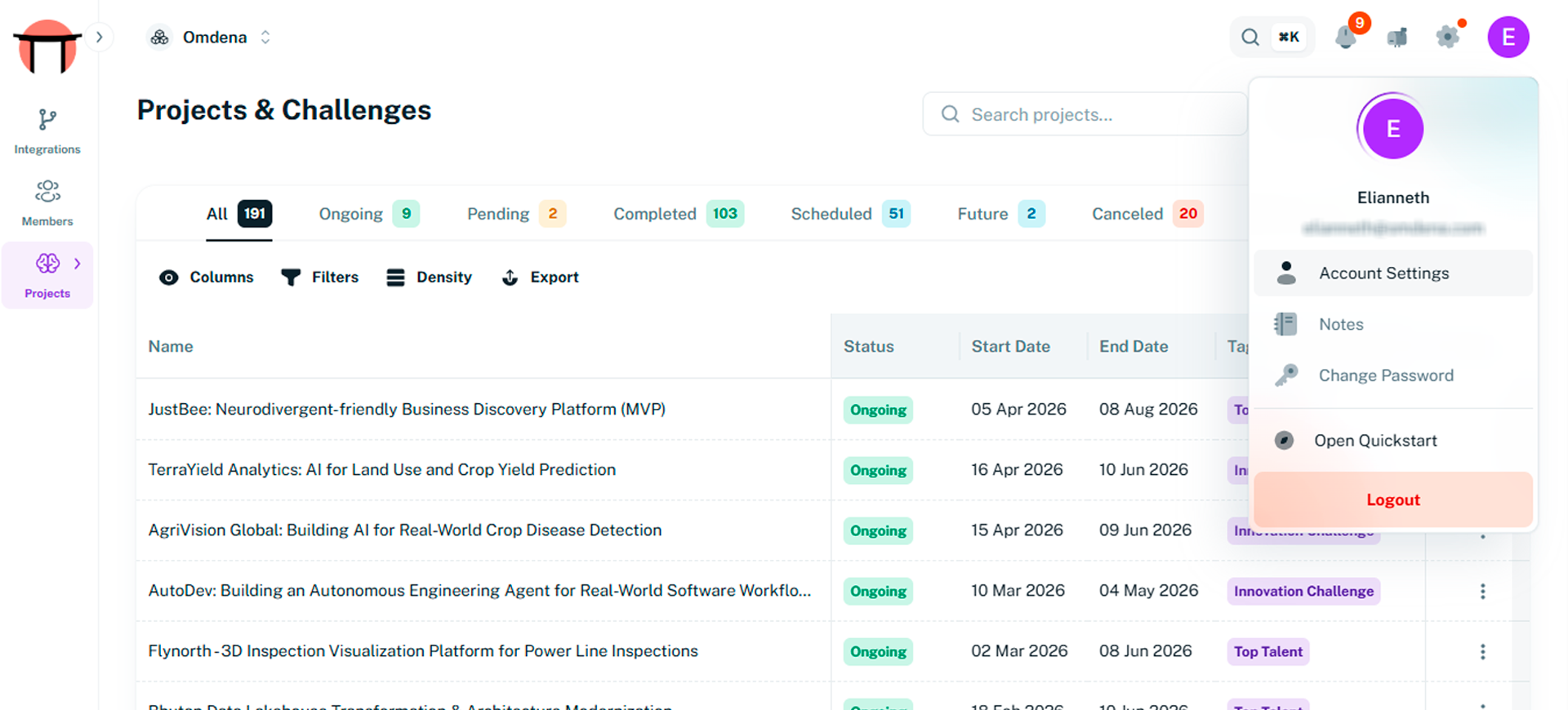
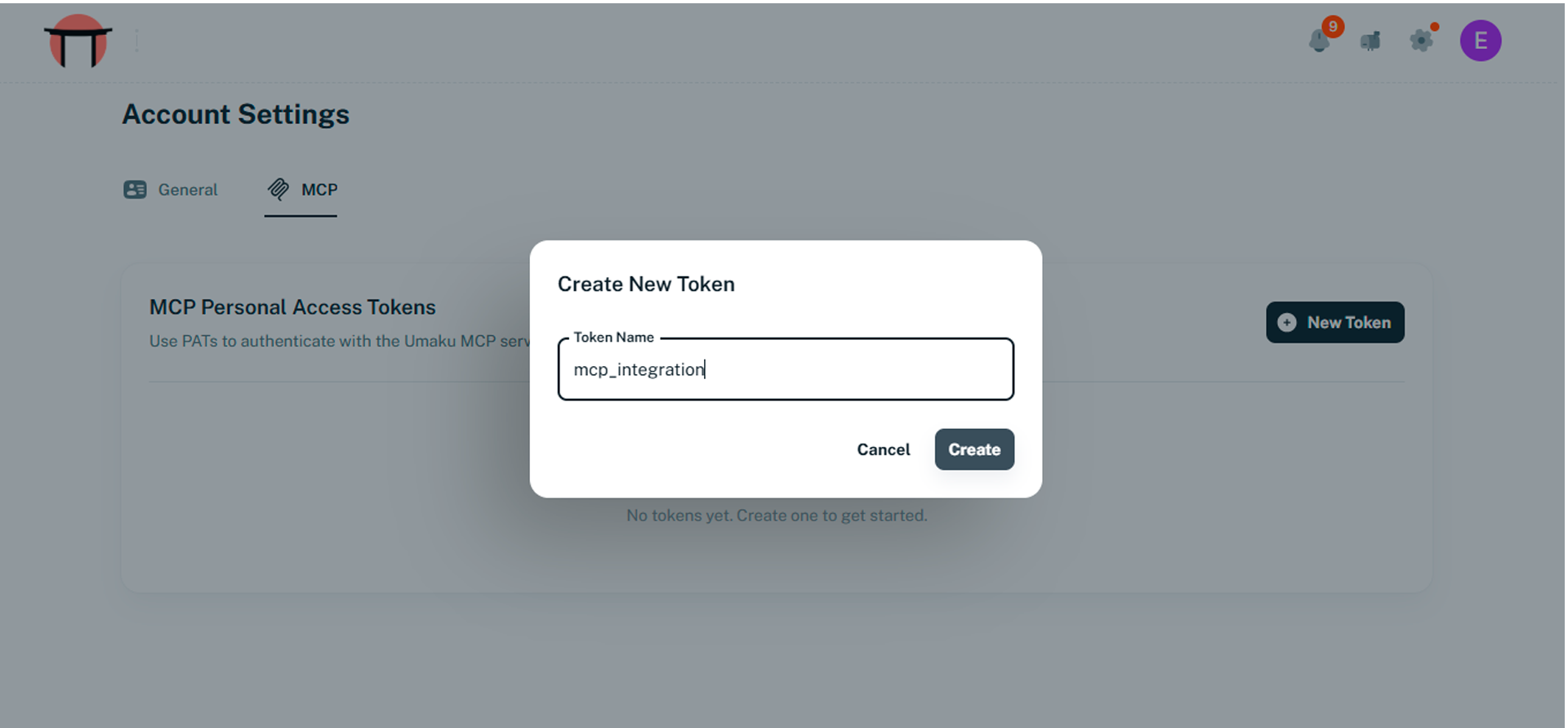
Everything starts with a token. Your Umaku MCP token acts as your secure identity layer between Claude and Umaku. Through this token, the AI interacts with the platform on your behalf while fully respecting Umaku’s Role-Based Access Control (RBAC) permissions. This ensures the assistant can only access and perform actions that your account is authorized to handle. Head to platform.umaku.ai, click your profile avatar in the top-right corner, and navigate to Account Settings. In the left sidebar, select MCP and click Generate token. Assign a name, copy, and save.
Step 2: Configure Your IDE
All supported IDEs use a JSON config file to register MCP servers; no plugin installation is needed. You can check https://docs.umaku.ai/guides/mcp-integration/ for more info. The configuration is nearly identical across tools; only the file path differs.
Cursor (Primary)
Cursor supports two scopes for the MCP config file:
| Scope | File Path | When to Use |
| Global (recommended) | ~/.cursor/mcp.json | Umaku is available in every project you open |
| Project-scoped | .cursor/mcp.json (repo root) | Umaku only for one specific repository |
For this guide, we will use the global scope. Go to Settings →Tools & MCPs→ Add custom MCP.
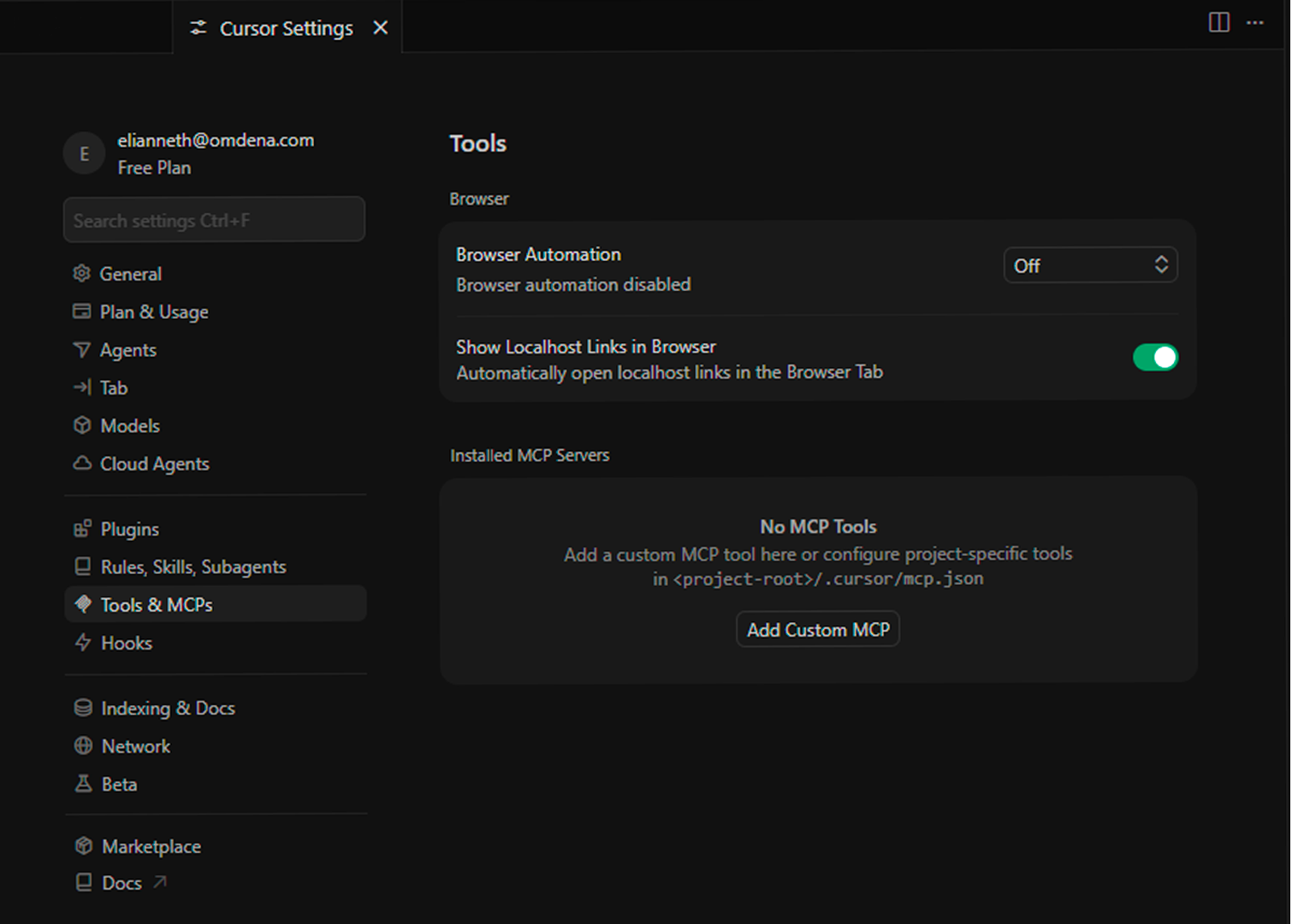
Add the following file:
JSON
{
  "mcpServers": {
    "umaku": {
      "type": "http",
      "url": "https://mcp.umaku.ai/mcp",
      "headers": {
        "x-umaku-token": "mcp_your_token_here"
      }
    }
  }
}
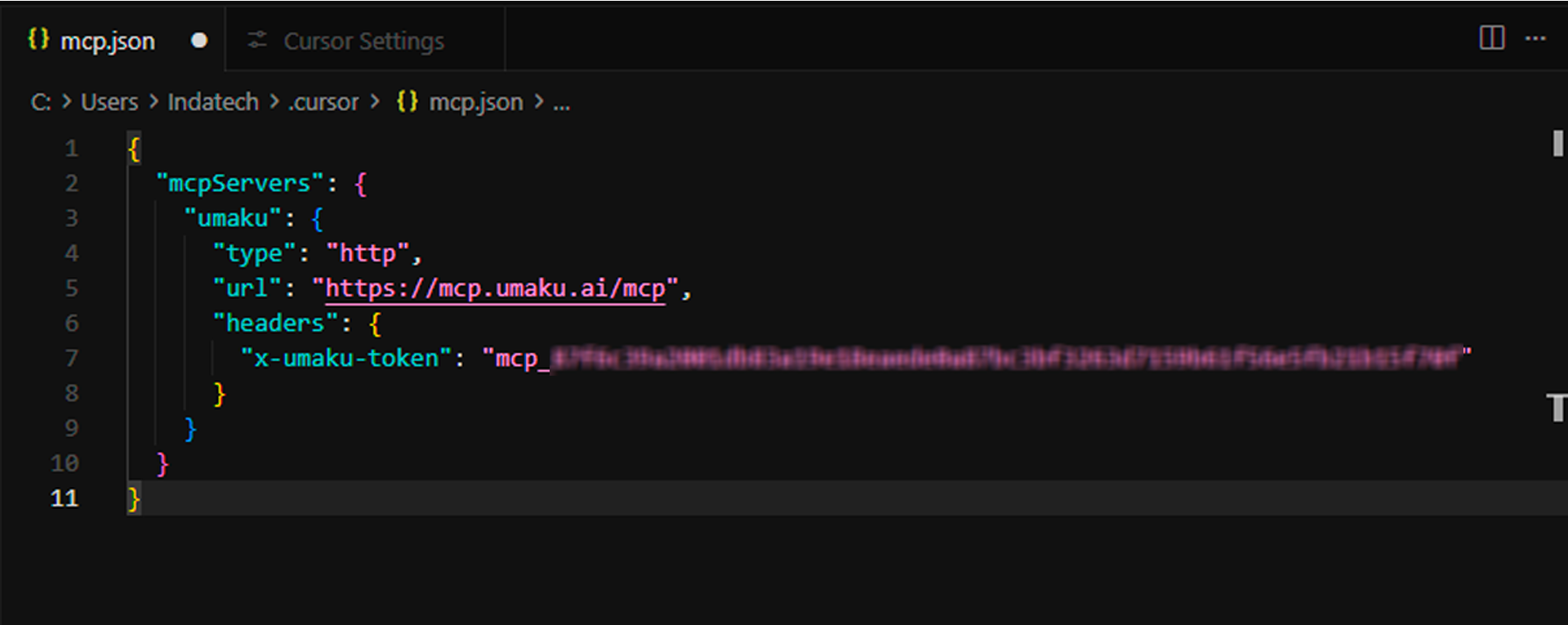
Save the file, then restart Cursor. Go to Cursor Settings → Tools & MCP and confirm “umaku” appears with a green status indicator.
For more details on configuring other IDEs, check out Umaku MCP Integration documentation
Step 3: Verify the Connection
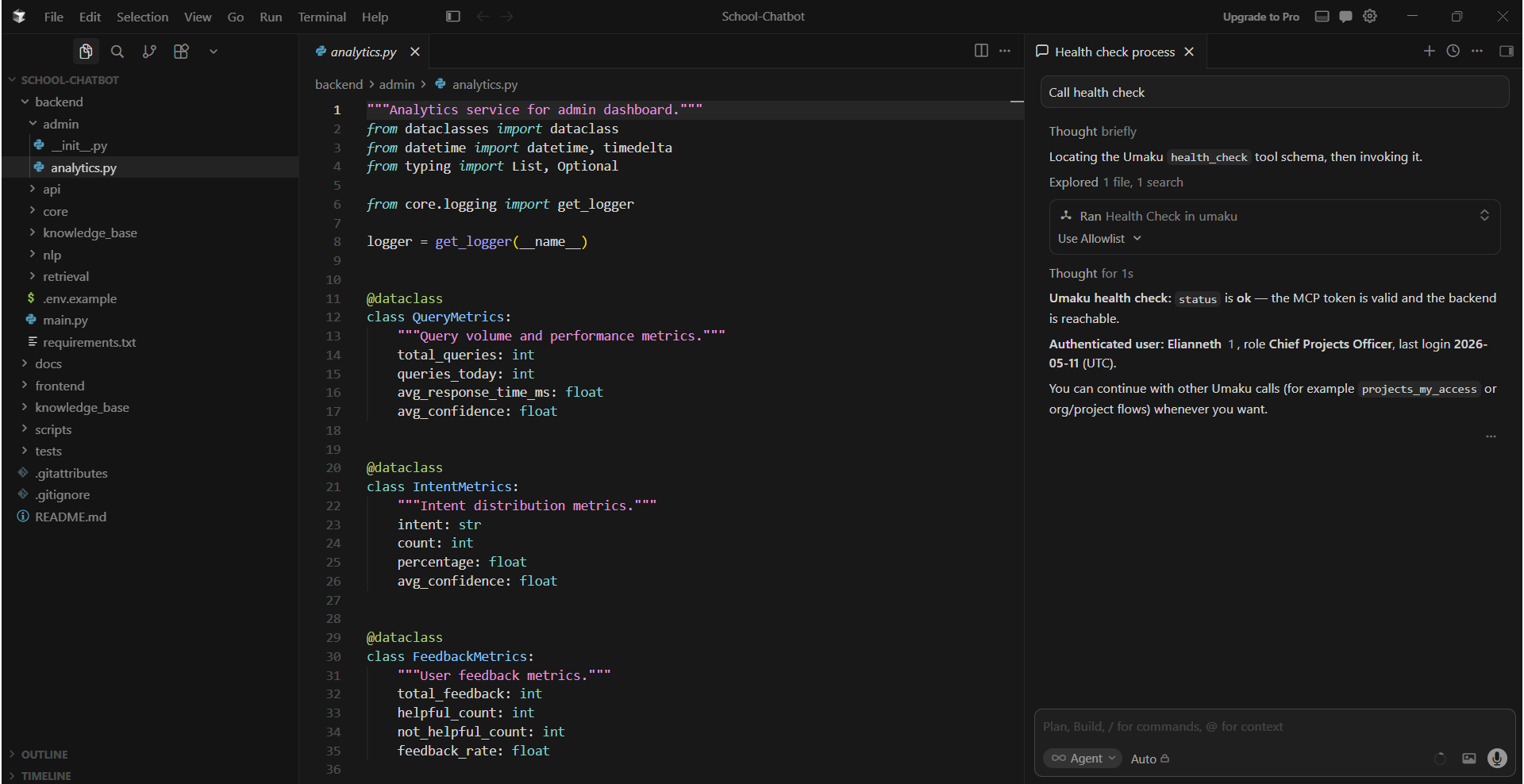
In your IDE’s AI chat (Cursor: Cmd+L, Windsurf: Cascade panel, etc.), type:
None
Call health check
A successful response shows your Umaku user profile, name, email, and organization. If you get an error, verify the token is correctly set in the headers section of your config and that the JSON is valid.
Step 4: Load Ticket Context Before Coding
This is the habit that makes everything else work. Before diving into code or fixing a bug, you need to bring the relevant ticket into the AI’s workspace. By merging your sprint overview with specific task loading, you ensure the AI understands the “why” and the “how” of your objective from the very first line.
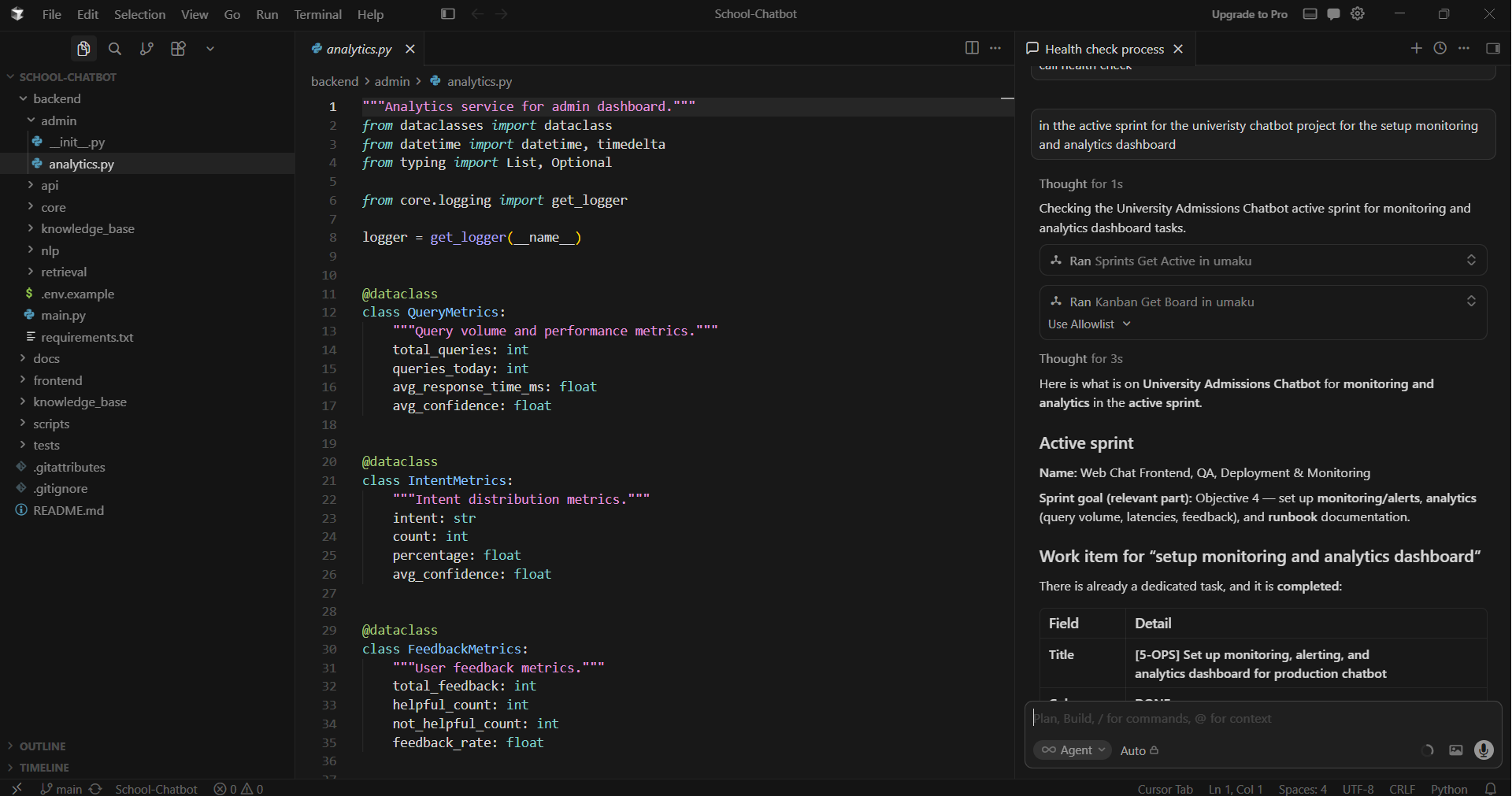
To get started, use a single command to identify your task within the current sprint and pull all its technical requirements:
None
In the active sprint for the [project name, id or key word], load the context for the [task name, id or key word]
Step 5: Vibe Coding with Context Awareness
With a ticket loaded, your coding session and your project management workflow happen in the same conversation. Here is what that loop looks like in practice.
5.1 Ask for Implementation Guidance
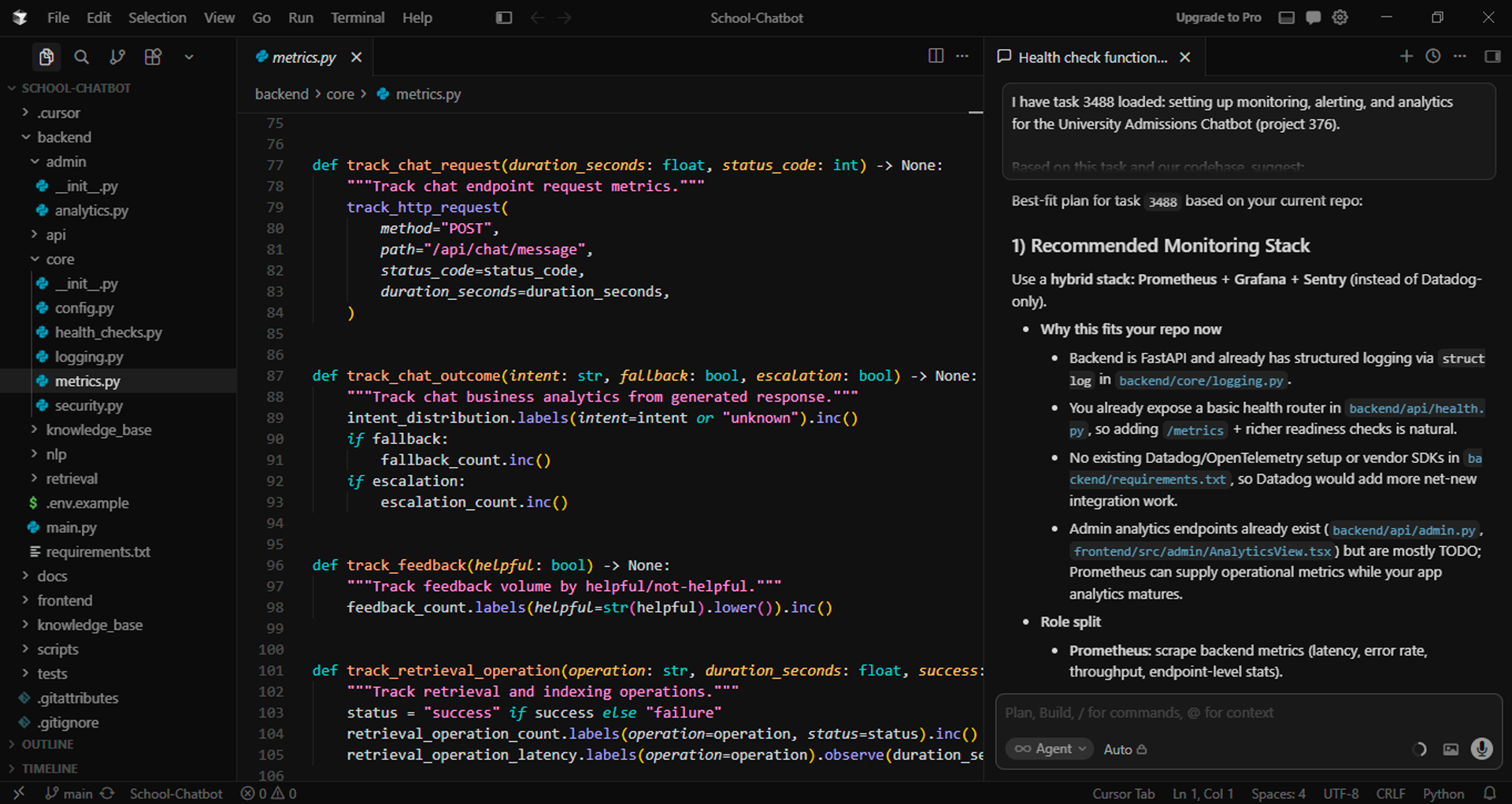
Don’t guess, diagnose. Let the AI analyze your ticket and codebase simultaneously to pinpoint root causes and map out a precise plan of action.
None
Based on task [task name, id or key word], suggest the most likely solution,etc. Do not write code. Focus on a clear, structured implementation plan aligned with best practices and scalability.
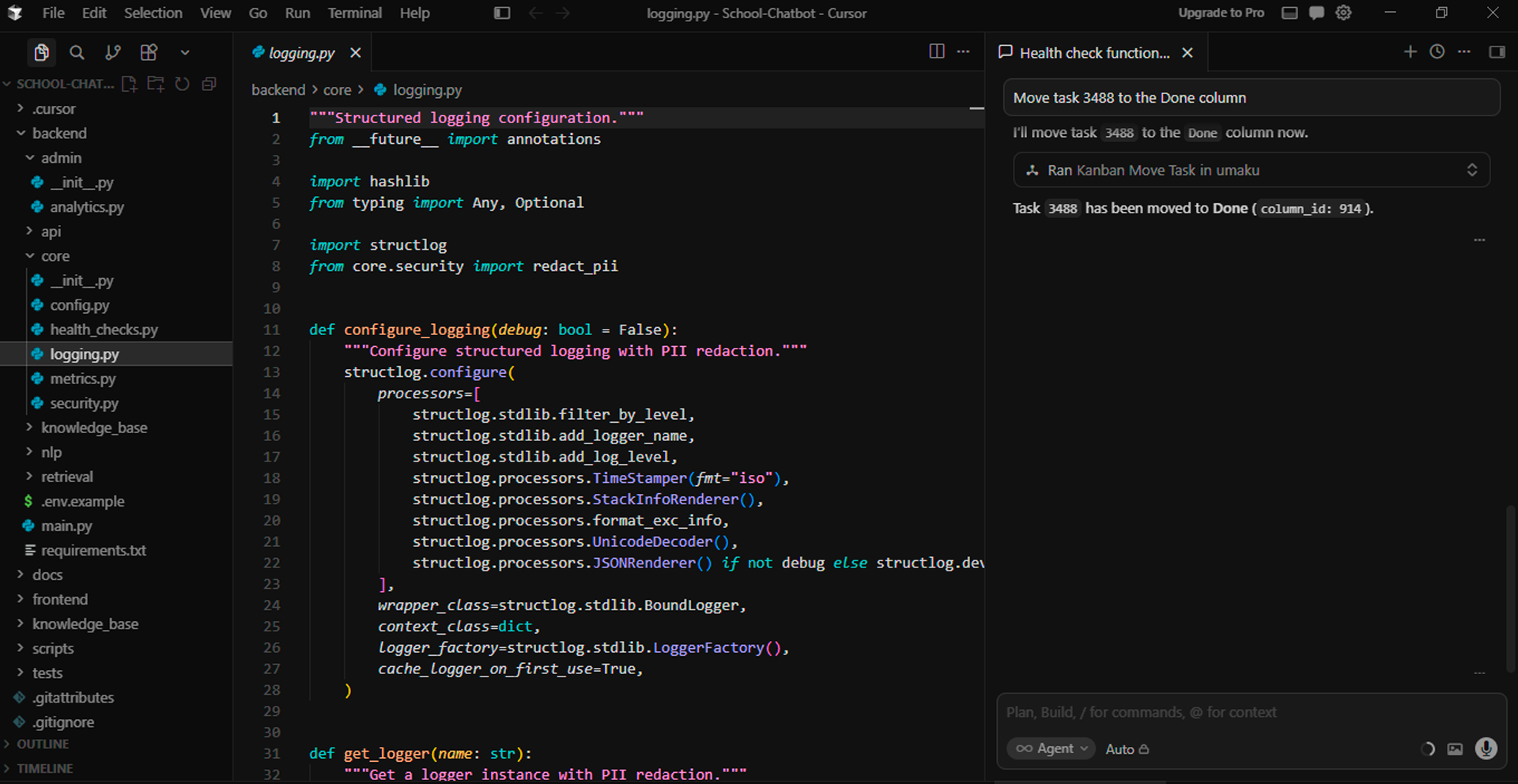
5.2 Update Status as You Work
Keep your board updated in real-time. Sync your progress and log hours as you code, ensuring your team is always in the loop without ever leaving your IDE.
None
Move task [task name,id or key word] to the [In Progress, Done] column and set actual hours to 1.5
5.3 Implement the plan
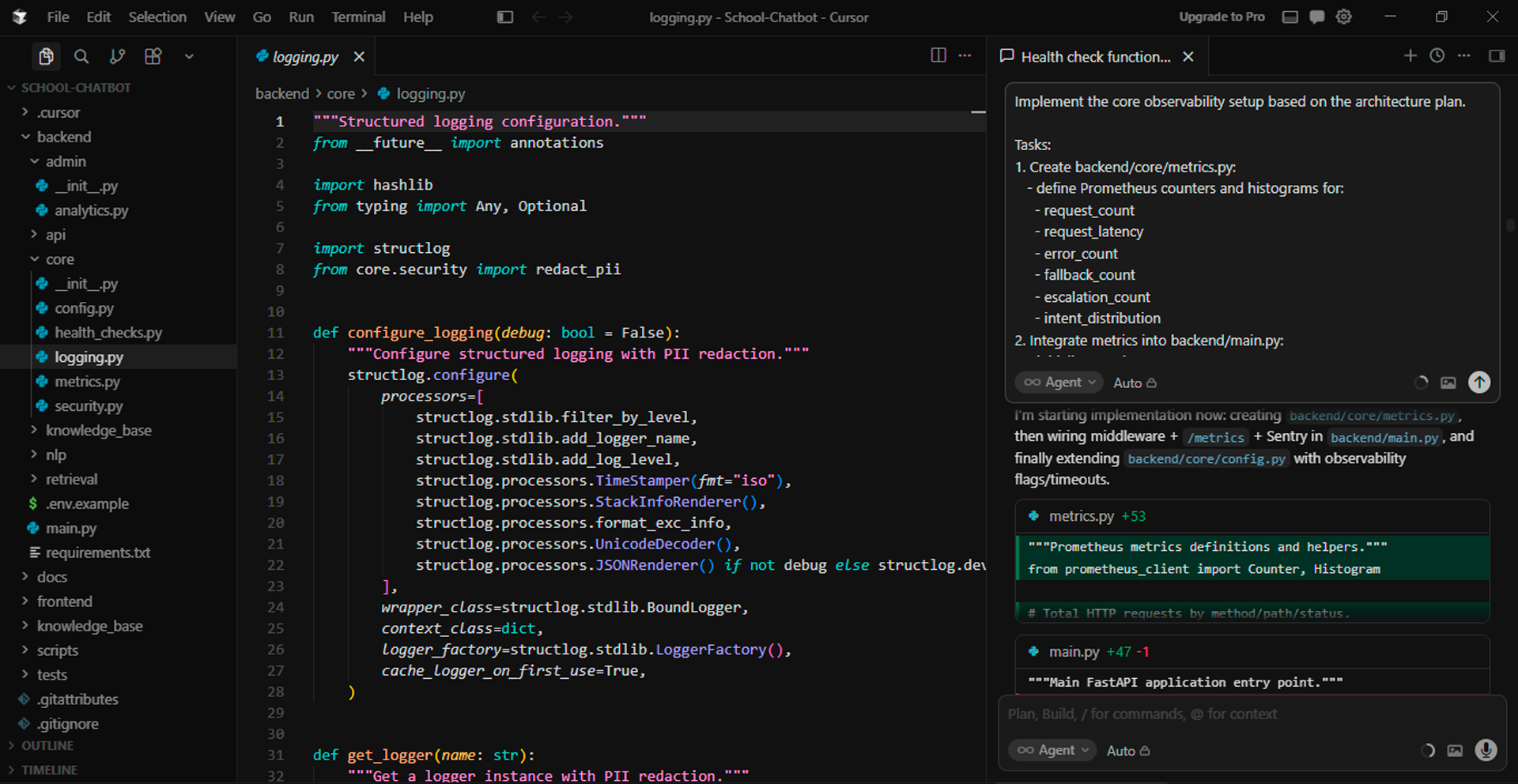
Once you review the strategy and are happy with it, just give the green light. Let the AI handle the heavy lifting and start writing the code while you oversee the implementation in real-time.
5.4 Link a Commit to the Ticket
Build a clear audit trail. You can link specific commits to their respective tasks. This will allow us to perform the AI Code review from the Kanban dashboard.
None
Link commit link to the ticket
Step 6: Managing Bugs While Coding
Bugs in Umaku are a separate entity from Kanban tasks. You can list, triage, and create them inline without switching to a browser.
6.1 List Open Bugs by Severity
Stay on top of your workload by instantly surfacing all bugs assigned to you or filtering the backlog by severity. This ensures you can pinpoint critical blockers and high-impact fixes the moment they arise.
None
List all bugs in project [project name, id or key word] with severity [severity type], status open assigned to me. Include only title, severity and description
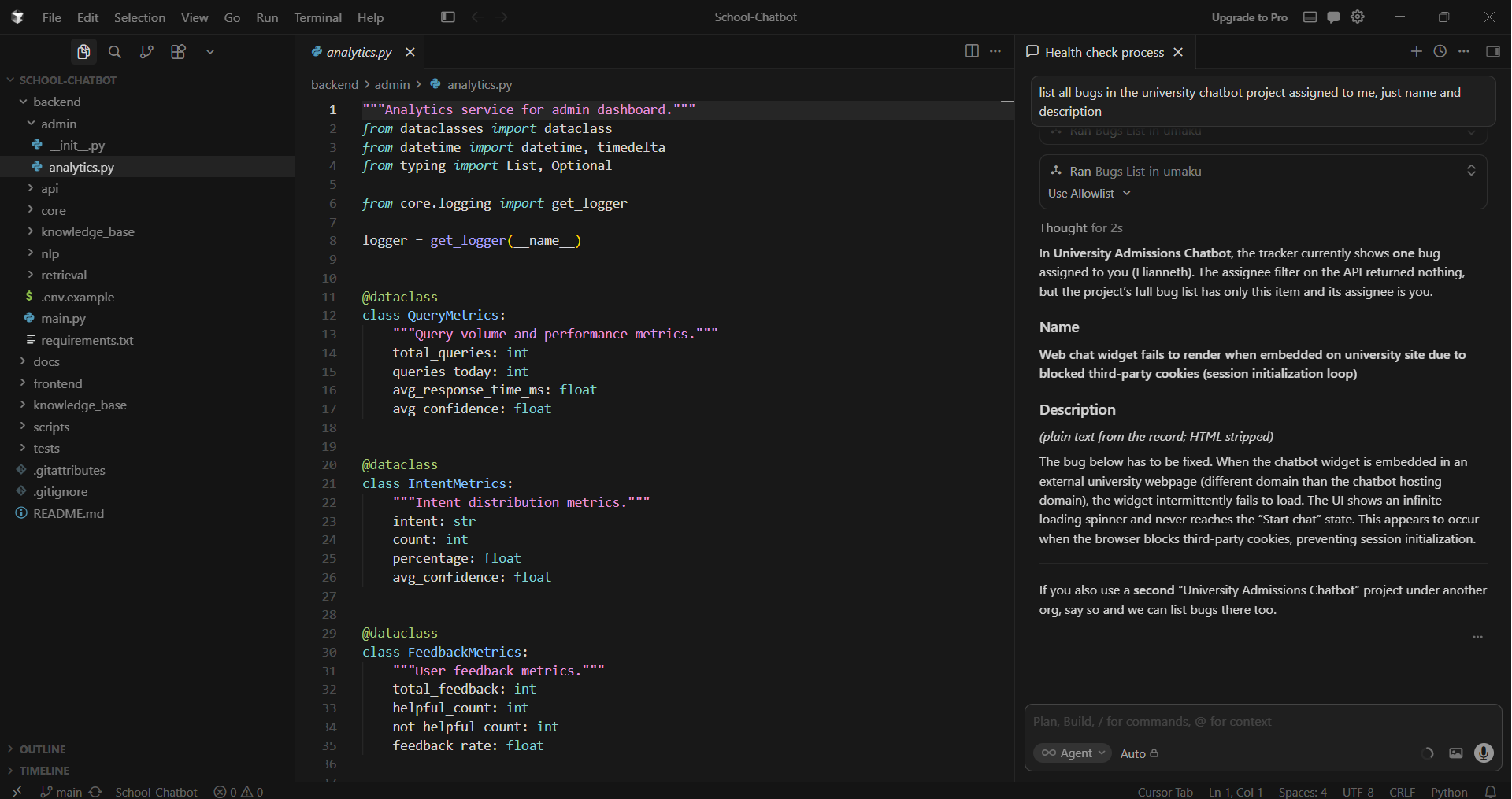
Once you have the details for the bug, you can extract the context.
None
Get full details for bug [bug name or key word]
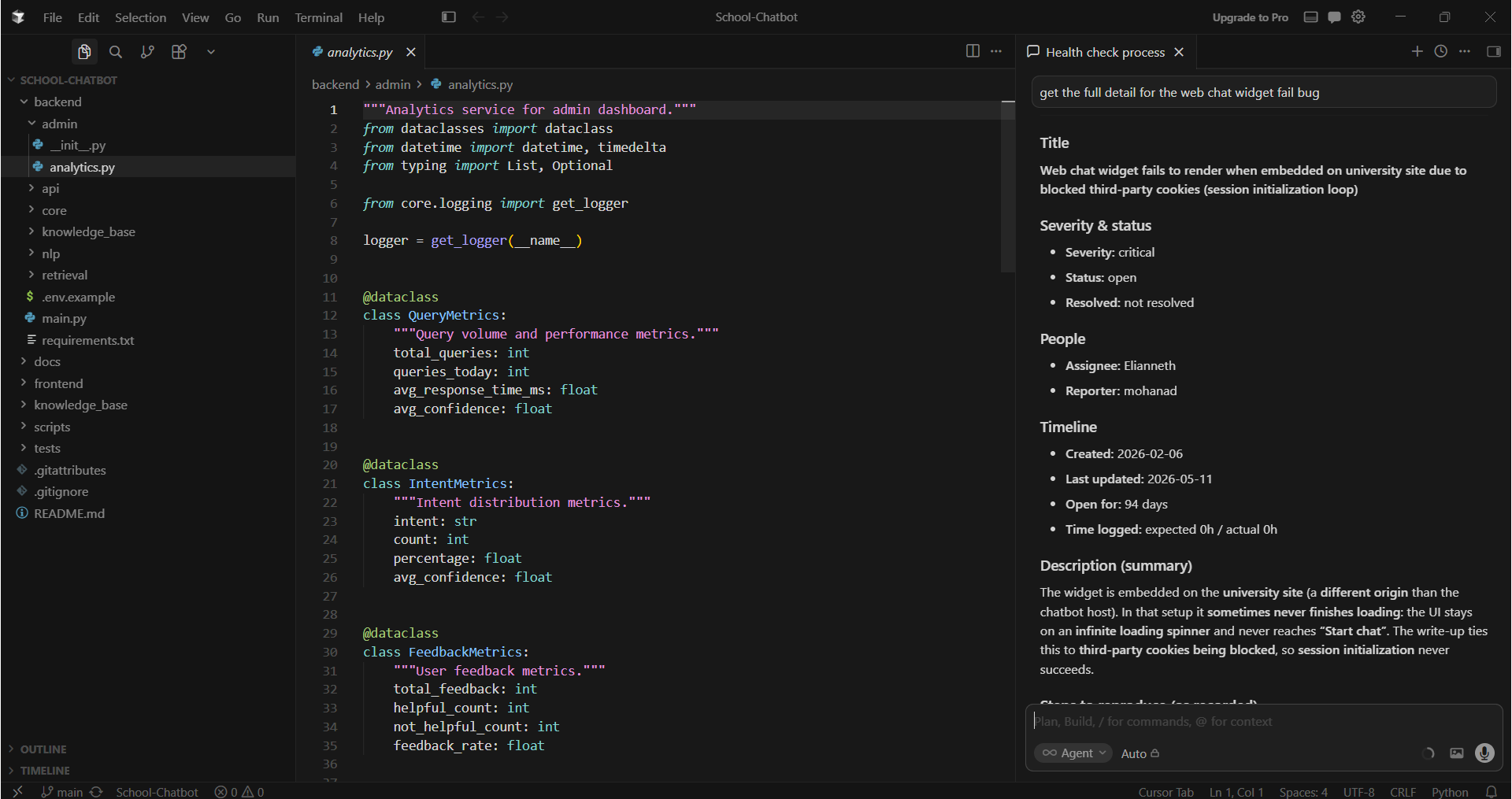
After this, you can start implementing the solution.
Step 7: From Sprint Feedback to Structured Execution
One of the biggest advantages of integrating an MCP server into AI IDEs like Cursor
is the ability to transform sprint feedback directly into actionable project management workflows.
Instead of manually reviewing retrospectives, identifying issues, planning fixes, creating tickets, assigning owners, and updating sprint boards, the AI can orchestrate the entire workflow through natural language prompts connected to your project management platform.
A good approach is to separate the process into two stages:
- Sprint analysis and feedback extraction
- Ticket generation and sprint execution
This separation gives teams more control over the planning phase before tasks are automatically created.
7.1 Analyze Previous Sprint Feedback
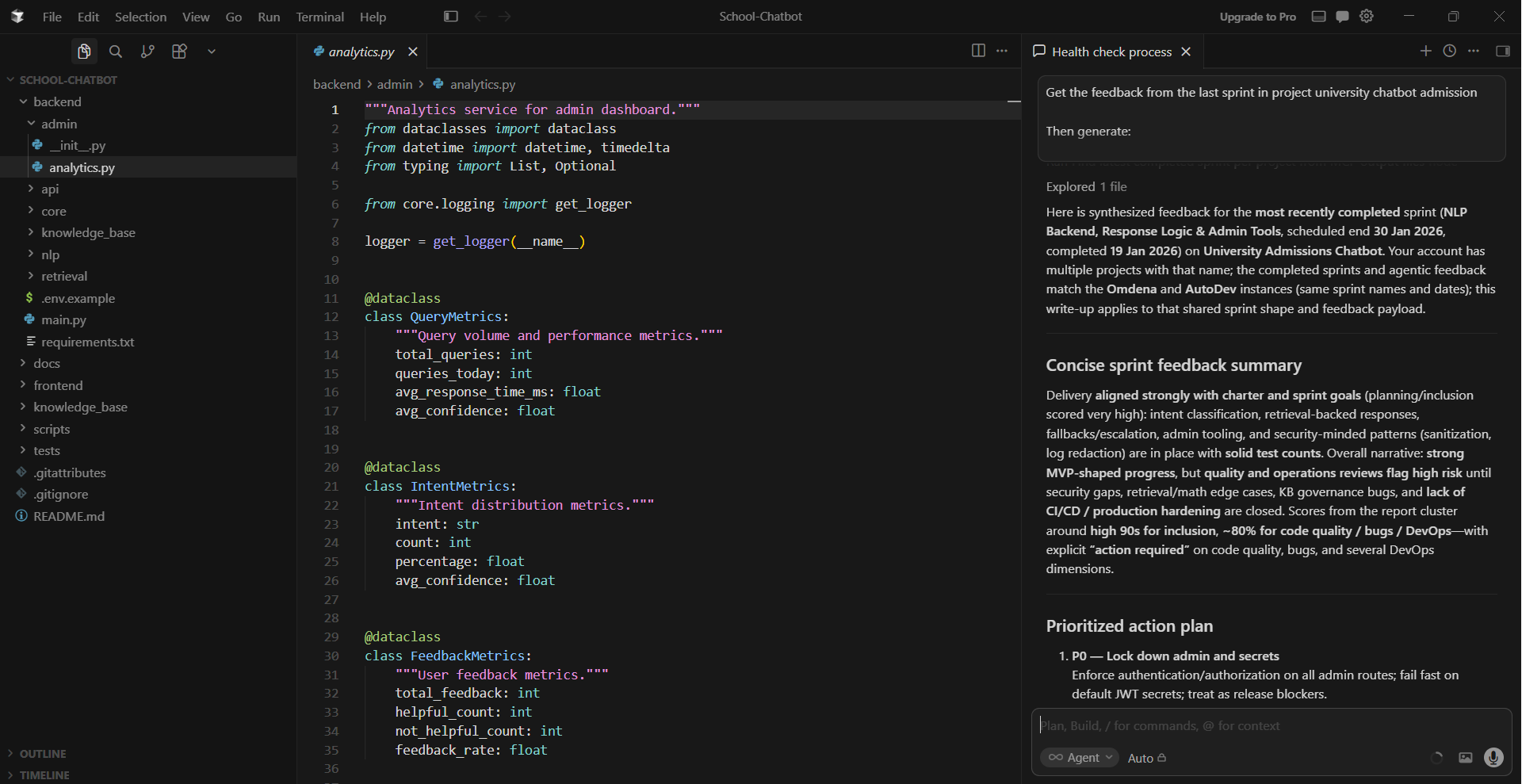
The first step focuses on understanding what happened during the previous sprint. The AI reviews retrospective notes, unresolved issues, blockers, technical debt, and recurring problems, then organizes them into a structured summary and implementation plan.
This stage is useful because it helps teams validate findings before automatically generating tasks, preventing noisy or low-priority tickets from entering the sprint backlog.
None
Get the feedback, retrospective notes, and unresolved items from the previous sprint in project [project name].
Then generate:
-A concise sprint feedback summary
-A prioritized action plan
-A categorized list of findings
-Suggested improvements for the next sprint
-Recommended tasks that should be converted into tickets
Do not create tickets yet.
7.2 Convert Findings into Actionable Tickets
Once the analysis has been reviewed, the next step is converting the findings into executable work items.
At this stage, the AI can automatically:
- Split findings into structured tickets
- Assign priorities
- Organize tasks by category
- Assign tickets to specific team members
- Distribute work by domain ownership
None
Based on the findings from the previous sprint analysis:
Create a structured implementation plan>
-Split all identified issues and improvements into actionable tickets
-Add clear descriptions and expected outcomes for each ticket, including user stories and acceptance criteria
-Create the tickets in the current sprint board
Assignment rules:
-Assign all Security/DevOps-related tasks to [member name]
-Assign all Security/DevOps-related tasks to [member name]
Group tickets by: Backend, AI/ML, DevOps
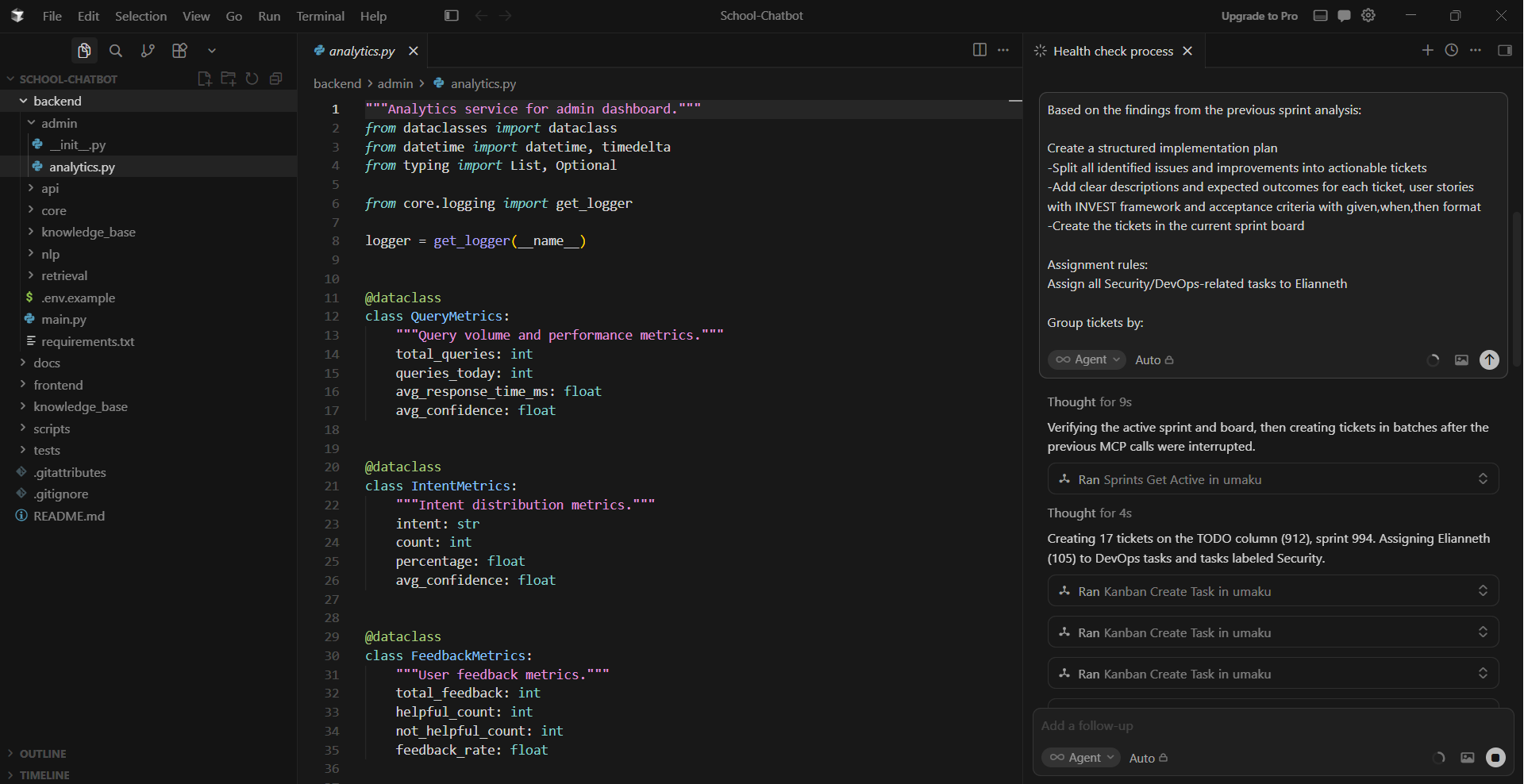
This workflow turns retrospectives into an operational pipeline where feedback flows directly into sprint execution, reducing manual coordination work and making planning significantly faster and more consistent across teams.
The promise of AI coding assistants has always been that they can help you write better code faster. But for that to be fully true, the AI needs to know what you are actually building, not just the code in front of it, but the requirement behind it, the priority driving it, and the context around it.
That is what Umaku’s MCP integration delivers. When your IDE can pull a ticket, load its acceptance criteria, help you implement it, and then close it out, all in one conversation, the boundary between planning and coding starts to dissolve. The result is not just convenience; it is a fundamentally more focused way of working.
Want to explore the full range of what Umaku can do, from agentic sprint planning to AI-powered performance insights? Visit umaku.ai to learn more.